A comprehensive reference for PowerShell commands, syntax, and scripting patterns. From daily sysadmin tasks to complex automation pipelines.
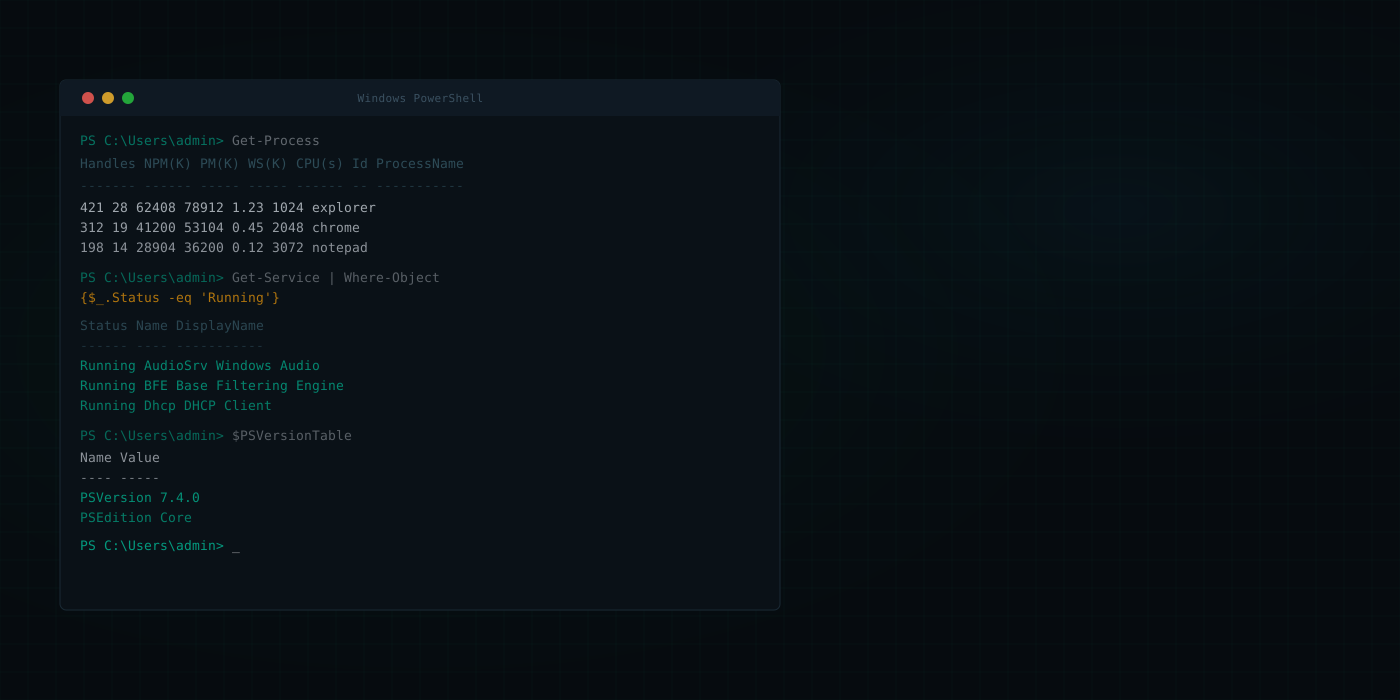
The fundamental cmdlets that every PowerShell user must know. These commands form the backbone of exploration, discovery, and pipeline processing.
Navigate, read, write, copy, and manage files and directories. PowerShell's provider model means these commands work on the registry and other stores too.
Monitor, start, stop, and manage Windows processes and services. From real-time CPU monitoring to service dependency management.
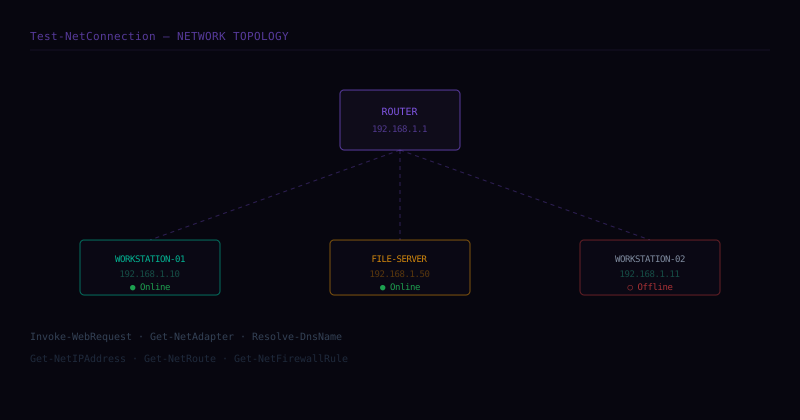
Test connectivity, manage adapters, query DNS, make HTTP requests, and configure firewall rules — all from the command line.
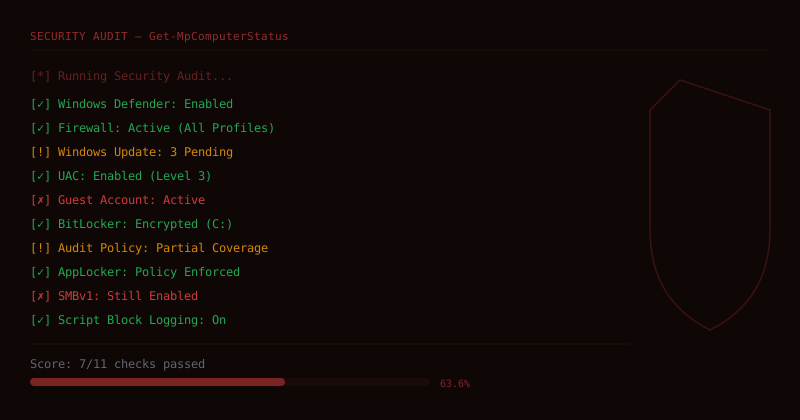
Manage execution policies, query Windows Defender, audit user accounts, manage certificates, and enforce security baselines.
Functions, error handling, jobs, remoting, and modules. Everything needed to write production-grade PowerShell automation.
Display help information for any PowerShell cmdlet, function, script, or conceptual topic. The foundation of self-service learning in PowerShell.
PS> Get-Help [[-Name] <String>] [-Full] [-Online] [-Examples] [-Detailed]
# Basic help PS> Get-Help Get-Process # Show only examples PS> Get-Help Get-Process -Examples # Full parameter reference PS> Get-Help Get-Process -Full # Open online docs in browser PS> Get-Help Get-Process -Online # Search for commands related to "network" PS> Get-Help "*network*" # Browse conceptual topics PS> Get-Help about_Pipelines PS> Get-Help about_Functions # Update help content from Microsoft PS> Update-Help -Force
Get-Help about_* to see all conceptual documentation topics available — about_Pipelines, about_Functions, about_Scopes, about_Regular_Expressions, and many more.| Parameter | Type | Description |
|---|---|---|
| -Name | String | Name of the cmdlet or topic. Supports wildcards. |
| -Full | Switch | Show the complete help article including all technical details. |
| -Examples | Switch | Show only the examples section — great for quick syntax lookups. |
| -Online | Switch | Open the online version of the help topic in your default browser. |
| -Detailed | Switch | Show parameter descriptions and examples. Middle ground between default and -Full. |
Discover all available commands, functions, aliases, and scripts in the current session and installed modules.
# Find cmdlets with "network" in the name PS> Get-Command "*network*" # List all cmdlets in a specific module PS> Get-Command -Module ActiveDirectory # Find by verb and noun PS> Get-Command -Verb Get -Noun "*Service*" # List all aliases PS> Get-Command -CommandType Alias # Find where an executable lives PS> Get-Command notepad.exe # Count all available cmdlets PS> (Get-Command -CommandType Cmdlet).Count
Get-Help <name> -Examples for ready-to-use code samples.Inspect the properties and methods of any .NET object in the pipeline — the essential tool for understanding what you can do with cmdlet output.
# Inspect all members of a process object PS> Get-Process | Get-Member # Show only properties PS> Get-Process | Get-Member -MemberType Property # Show only methods PS> Get-Process | Get-Member -MemberType Method # Inspect a string object PS> "Hello World" | Get-Member # Find all note properties (custom properties) PS> Get-Process | Get-Member -MemberType NoteProperty
Select specific properties, create computed properties, or limit the number of objects returned. Shapes pipeline output precisely.
# Select specific properties PS> Get-Process | Select-Object Name, CPU, Id # Get the top 5 by CPU PS> Get-Process | Sort-Object CPU -Desc | Select-Object -First 5 # Computed / calculated property PS> Get-Process | Select-Object Name, @{ Name = 'MemMB' Expression = { [math]::Round($_.WorkingSet64 / 1MB, 1) } } # Expand a nested property PS> Get-Process | Select-Object -ExpandProperty Threads # Select unique values PS> Get-Process | Select-Object -Unique -Property Name
Filter pipeline objects using a script block or simplified syntax. The PowerShell equivalent of SQL's WHERE clause.
# Classic script block syntax PS> Get-Service | Where-Object { $_.Status -eq 'Running' } # Simplified comparison syntax (PS 3+) PS> Get-Service | Where-Object Status -eq 'Running' # Multiple conditions with -and PS> Get-Process | Where-Object { $_.CPU -gt 10 -and $_.WorkingSet64 -gt 100MB } # String pattern matching PS> Get-Process | Where-Object Name -like "*chrome*" # Null check PS> Get-Process | Where-Object { $_.MainWindowTitle -ne '' }
Execute a script block for each pipeline object. Supports parallel processing in PowerShell 7+ via -Parallel.
# Basic iteration PS> 1..5 | ForEach-Object { $_ * 2 } # Call a method on each object PS> Get-ChildItem "*.txt" | ForEach-Object { $_.Name.ToUpper() } # Parallel execution (PS 7+) PS> 1..20 | ForEach-Object -Parallel { Start-Sleep 1; $_ } -ThrottleLimit 5 # Begin / Process / End blocks PS> 1..3 | ForEach-Object -Begin { "Start" } -Process { $_ } -End { "Done" }
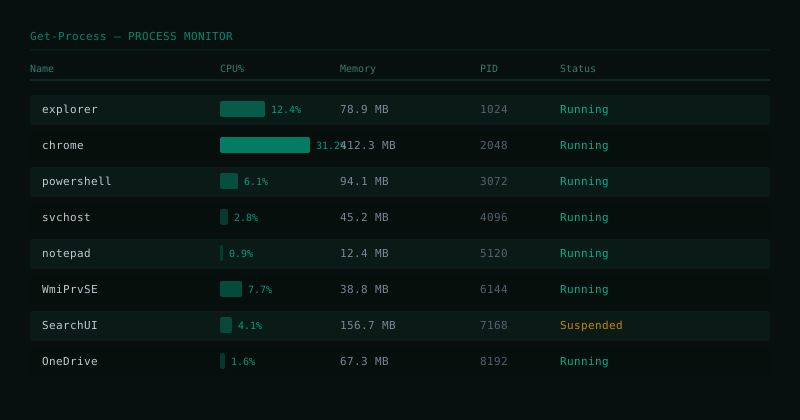
Retrieve information about running processes — CPU, memory, handles, threads, and more. Works locally or against remote computers.
# List all running processes PS> Get-Process # Find a specific process PS> Get-Process -Name chrome # Top 10 by CPU PS> Get-Process | Sort-Object CPU -Descending | Select-Object -First 10 # Processes using more than 500MB RAM PS> Get-Process | Where-Object { $_.WorkingSet64 -gt 500MB } # Include username (requires admin) PS> Get-Process -IncludeUserName | Select-Object Name, UserName, CPU # Remote process list PS> Get-Process -ComputerName "server01"
-Name to filter directly instead of piping to Where-Object — the filter runs at the provider level and is significantly faster for large process lists.| Property | Type | Description |
|---|---|---|
| CPU | Double | Total processor time used in seconds |
| WorkingSet64 | Int64 | Physical memory used in bytes |
| Id | Int32 | Process ID (PID) |
| StartTime | DateTime | When the process was launched |
| Responding | Boolean | Whether the process is responding to input |
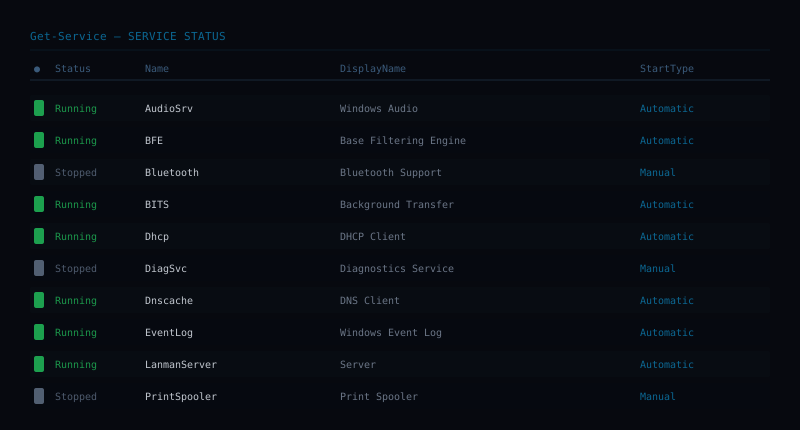
Retrieve Windows service status — Running, Stopped, or Paused. Pipe directly to Start-Service, Stop-Service, or Restart-Service.
# List all services PS> Get-Service # Only running services PS> Get-Service | Where-Object Status -eq 'Running' # Start all stopped SQL services PS> Get-Service "sql*" | Where-Object {$_.Status -eq 'Stopped'} | Start-Service # Show dependent services PS> Get-Service lanmanserver -DependentServices # Export to CSV PS> Get-Service | Select-Object Name, DisplayName, Status, StartType | Export-Csv "services.csv" -NoTypeInformation
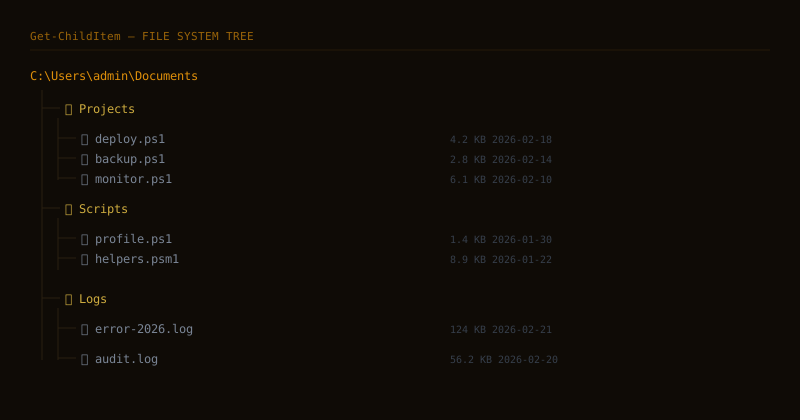
List files and directories. Works across the filesystem, registry, certificate store, and any PowerShell provider.
# List current directory PS> Get-ChildItem # Recursive search for .log files PS> Get-ChildItem -Path C:\ -Recurse -Filter "*.log" # Files modified in last 24 hours PS> Get-ChildItem D:\Logs | Where-Object {$_.LastWriteTime -gt (Get-Date).AddDays(-1)} # Files over 100MB, sorted by size PS> Get-ChildItem -Recurse | Where-Object {$_.Length -gt 100MB} | Sort-Object Length -Descending # Only directories PS> Get-ChildItem -Directory # Browse the registry PS> Get-ChildItem "HKLM:\SOFTWARE\Microsoft"
-File and -Directory switches instead of Where-Object — they filter at the provider level and are much faster for large trees.Diagnose TCP port reachability, ICMP ping, and route tracing — all in one cmdlet.
# Basic ping test PS> Test-NetConnection "8.8.8.8" # Test specific TCP port PS> Test-NetConnection "server01" -Port 443 # Trace route PS> Test-NetConnection "google.com" -TraceRoute # Check port 443 across multiple servers PS> $servers = "web01", "web02", "web03" PS> $servers | ForEach-Object { $r = Test-NetConnection $_ -Port 443 [PSCustomObject]@{ Server = $_; Port443 = $r.TcpTestSucceeded } }
Query the current PowerShell script execution policy at machine, user, and process scope levels.
| Policy | Behavior |
|---|---|
| Restricted | No scripts run. Interactive commands only. Default on Windows clients. |
| AllSigned | All scripts must be signed by a trusted publisher. |
| RemoteSigned | Remote scripts require signature; local scripts run unsigned. |
| Unrestricted | All scripts run. Remote scripts prompt before running. |
| Bypass | Nothing blocked. No warnings or prompts. Use in automation. |
# Check current policy PS> Get-ExecutionPolicy # Show all scope levels PS> Get-ExecutionPolicy -List # Set policy for current user PS> Set-ExecutionPolicy RemoteSigned -Scope CurrentUser # One-time bypass for a single script PS> powershell.exe -ExecutionPolicy Bypass -File .\script.ps1
Execute commands on one or many remote computers via WinRM. The backbone of large-scale Windows automation.
# Run on a single remote machine PS> Invoke-Command -ComputerName server01 -ScriptBlock { Get-Service wuauserv } # Run across multiple servers in parallel PS> $servers = "web01", "web02", "db01" PS> Invoke-Command -ComputerName $servers -ScriptBlock { [PSCustomObject]@{ Server = $env:COMPUTERNAME FreeGB = [math]::Round((Get-PSDrive C).Free / 1GB, 1) } } # Pass local variable with $using: scope PS> $svc = "bits" PS> Invoke-Command -ComputerName server01 -ScriptBlock { Restart-Service $using:svc } # As a background job PS> $job = Invoke-Command -ComputerName server01 -ScriptBlock { Get-Process } -AsJob PS> Receive-Job $job -Wait
$using: modifier to pass local variables into remote script blocks. Without it, local variables are inaccessible inside the remote session.Terminate one or more running processes by name or ID. Use -Force for unresponsive apps and -WhatIf to preview.
PS> Stop-Process -Name notepad PS> Stop-Process -Id 1234 -Force PS> Get-Process chrome | Stop-Process -WhatIf # Kill all hung processes PS> Get-Process | Where-Object {$_.Responding -eq $false} | Stop-Process -Force
Launch executables, scripts, or documents. Supports elevated privileges (-Verb RunAs), custom working directories, and synchronous execution (-Wait).
PS> Start-Process notepad.exe PS> Start-Process powershell -Verb RunAs # Elevated PS> Start-Process ".\install.exe" -ArgumentList "/silent" -Wait PS> Start-Process "https://docs.microsoft.com"
Copy files, directories, or registry keys locally or to remote PSSession targets.
PS> Copy-Item ".\file.txt" "C:\Backup\" PS> Copy-Item -Path ".\src" -Destination ".\dst" -Recurse # Copy to remote session PS> $s = New-PSSession server01 PS> Copy-Item ".\app.zip" -Destination "C:\Deploy\" -ToSession $s
Read file contents line by line. Use -Tail + -Wait for live log monitoring. Use -Raw to read as a single string.
PS> Get-Content ".\readme.txt" PS> Get-Content ".\app.log" -Tail 100 -Wait # Live tail PS> Get-Content ".\data.json" -Raw | ConvertFrom-Json # Count lines PS> (Get-Content ".\large.log").Count
Sort pipeline objects by one or more properties. Supports ascending, descending, case-sensitive, and unique deduplication.
PS> Get-Process | Sort-Object CPU -Descending PS> Get-ChildItem | Sort-Object LastWriteTime # Multi-property sort PS> Get-Process | Sort-Object -Property @{E='CPU';Desc=$true}, Name
Display objects as a formatted table. Always use as the final command in a pipeline — output cannot be piped further.
PS> Get-Process | Format-Table Name, CPU, Id -AutoSize PS> Get-Service | Format-Table -GroupBy Status -AutoSize
Calculate Count, Sum, Average, Min, and Max on numeric properties. Also supports -Line, -Word, -Character for text.
PS> Get-Process | Measure-Object CPU -Sum -Average -Max PS> Get-ChildItem -Recurse | Measure-Object Length -Sum # Count lines in a file PS> Get-Content file.txt | Measure-Object -Line
Serialize PowerShell objects to JSON. Essential for REST APIs, config generation, and data export workflows.
PS> Get-Process | Select-Object Name, CPU | ConvertTo-Json PS> @{name="test"; value=42} | ConvertTo-Json -Compress PS> ConvertTo-Json $data -Depth 5 | Set-Content "output.json"
Write or replace file content. Use Add-Content to append without overwriting.
PS> Set-Content ".\out.txt" "Hello, World" PS> Add-Content ".\log.txt" ((Get-Date).ToString()) PS> Get-Process | ConvertTo-Csv | Set-Content "processes.csv"
Delete files, directories, or registry keys. Always test with -WhatIf before running recursively.
PS> Remove-Item ".\temp.txt" PS> Remove-Item ".\cache" -Recurse -Force PS> Remove-Item "C:\Logs\*.log" -WhatIf # Delete files older than 30 days PS> Get-ChildItem "C:\Logs" | Where-Object {$_.LastWriteTime -lt (Get-Date).AddDays(-30)} | Remove-Item
Start one or more stopped Windows services. Accepts pipeline input from Get-Service for batch operations.
PS> Start-Service "wuauserv" PS> Get-Service "sql*" | Start-Service PS> Start-Service bits -PassThru
Stop and restart a service in one operation. -Force handles dependent services automatically.
PS> Restart-Service "Spooler" PS> Restart-Service "wuauserv" -Force PS> Get-Service "iis*" | Restart-Service -PassThru
Send ICMP echo requests to hosts. Returns structured objects with latency; use -Quiet for $true/$false scripting.
PS> Test-Connection "8.8.8.8" PS> Test-Connection "google.com" -Count 4 -Quiet # Parallel ping multiple hosts PS> "web01","web02","db01" | Test-Connection -Count 1
DNS lookups for A, MX, TXT, CNAME, and other record types — with custom server support.
PS> Resolve-DnsName "microsoft.com" PS> Resolve-DnsName "microsoft.com" -Type MX PS> Resolve-DnsName "google.com" -Server "1.1.1.1"
List network adapters with link speed, MAC address, and driver details.
PS> Get-NetAdapter PS> Get-NetAdapter | Where-Object Status -eq Up PS> Get-NetAdapter -Physical | Select-Object Name, LinkSpeed, MacAddress
Retrieve IP addresses assigned to all network interfaces, including IPv4/IPv6 and subnet prefix lengths.
PS> Get-NetIPAddress PS> Get-NetIPAddress -AddressFamily IPv4 PS> Get-NetIPAddress -InterfaceAlias "Ethernet"
Make HTTP/HTTPS requests and return response headers, status codes, and parsed content.
PS> Invoke-WebRequest "https://example.com" # Download a file PS> Invoke-WebRequest -Uri "https://example.com/file.zip" -OutFile ".\file.zip" # POST JSON body PS> $body = @{name="test"} | ConvertTo-Json PS> Invoke-WebRequest -Uri "https://api.example.com/items" -Method POST -Body $body -ContentType "application/json"
Call REST APIs and automatically deserialize JSON/XML responses into native PS objects.
PS> Invoke-RestMethod "https://api.github.com/repos/PowerShell/PowerShell" # POST with auth header PS> $headers = @{Authorization = "Bearer $token"} PS> Invoke-RestMethod -Uri "https://api.example.com/data" -Method POST -Headers $headers -Body ($body | ConvertTo-Json) -ContentType "application/json"
Configure the PS script execution policy at machine, user, or process scope. Requires elevation for machine-wide changes.
PS> Set-ExecutionPolicy RemoteSigned -Scope CurrentUser PS> Set-ExecutionPolicy AllSigned -Scope LocalMachine -Force PS> Set-ExecutionPolicy Bypass -Scope Process
Query Windows Defender status including real-time protection, signature versions, and last scan results.
PS> Get-MpComputerStatus PS> (Get-MpComputerStatus).RealTimeProtectionEnabled PS> Get-MpComputerStatus | Select-Object AntivirusEnabled, AntispywareSignatureLastUpdated, LastFullScanEndTime
List local user accounts with enabled state, last logon, and SID — essential for security audits.
PS> Get-LocalUser PS> Get-LocalUser | Where-Object Enabled -eq $true # Disable Guest account PS> Get-LocalUser "Guest" | Disable-LocalUser
Retrieve the security descriptor (ACL) for files, folders, or registry keys. Pair with Set-Acl to apply changes.
PS> Get-Acl "C:\Sensitive" PS> (Get-Acl "C:\Data").Access # Copy ACL from one folder to another PS> $acl = Get-Acl "C:\Source" PS> Set-Acl "C:\Dest" $acl
Browse the Windows Certificate Store via the Cert: PSDrive. Audit installed certs and find expiring certificates.
PS> Get-ChildItem Cert:\LocalMachine -Recurse # Find certs expiring within 30 days PS> Get-ChildItem Cert:\LocalMachine\My | Where-Object {$_.NotAfter -lt (Get-Date).AddDays(30)} # Find by thumbprint PS> Get-ChildItem Cert:\LocalMachine -Recurse | Where-Object Thumbprint -eq "ABC123..."
Run a script block in the background. Use Receive-Job to collect results, Wait-Job to synchronize, Remove-Job to clean up.
PS> $job = Start-Job { Get-Process } PS> Wait-Job $job PS> Receive-Job $job PS> Remove-Job $job # Multiple parallel jobs PS> $jobs = 1..5 | ForEach-Object { Start-Job { Start-Sleep 2; $using:_ } } PS> $jobs | Wait-Job | Receive-Job
Structured exception handling. Use -ErrorAction Stop to convert non-terminating errors into catchable exceptions.
try {
Get-Item "C:\NonExistent" -ErrorAction Stop
} catch [System.IO.FileNotFoundException] {
Write-Warning "File not found: $($_.Exception.Message)"
} catch {
Write-Error "Unexpected: $_"
} finally {
Write-Output "Cleanup complete"
}
# Make ALL errors catchable globally
PS> $ErrorActionPreference = 'Stop'Load a PowerShell module into the session. PS 3+ auto-loads modules on first use, but explicit import ensures availability.
PS> Import-Module ActiveDirectory PS> Import-Module ".\MyModule.psm1" PS> Import-Module Az -Force PS> Get-Module -ListAvailable # Install from PSGallery first PS> Install-Module PSReadLine -Scope CurrentUser
Create a persistent remote session (PSSession) for reuse across multiple commands without reconnecting each time.
PS> $s = New-PSSession -ComputerName "server01" PS> Invoke-Command -Session $s -ScriptBlock { Get-Process } PS> Enter-PSSession $s # Interactive remote shell PS> Remove-PSSession $s # Close when done
Send objects to the pipeline. Unlike Write-Host, output can be captured, redirected, and piped to other commands.
PS> Write-Output "Hello, World" PS> Write-Host "Console only" -ForegroundColor Cyan # Structured logging streams PS> Write-Verbose "Debug info" # Only with -Verbose PS> Write-Warning "Looks wrong" PS> Write-Error "Critical failure"
Time script block execution. Returns a TimeSpan with TotalMilliseconds, TotalSeconds, etc. Essential for profiling.
PS> Measure-Command { Get-ChildItem C:\ -Recurse } # Compare two approaches PS> Measure-Command { Get-Process | Where-Object Name -eq "chrome" } PS> Measure-Command { Get-Process -Name "chrome" } # Faster
Query classic Windows Event Logs. For modern structured logs, prefer Get-WinEvent.
PS> Get-EventLog -LogName System -Newest 50 PS> Get-EventLog -LogName Application -EntryType Error -Newest 20 PS> Get-EventLog -LogName Security -After (Get-Date).AddDays(-1) # Modern equivalent (preferred) PS> Get-WinEvent -LogName 'System' -MaxEvents 50
Check if a path exists before operating on it. Returns $true or $false — essential for defensive scripting.
PS> Test-Path "C:\Windows" PS> Test-Path "C:\Logs" -PathType Container # Guard a script block safely PS> if (Test-Path ".\config.json") { $cfg = Get-Content ".\config.json" -Raw | ConvertFrom-Json } else { Write-Warning "Config missing" }
Rename files and directories. Combine with Get-ChildItem for powerful batch rename operations.
PS> Rename-Item ".\old.txt" "new.txt" # Batch: add date prefix to .log files PS> Get-ChildItem "*.log" | Rename-Item -NewName { "$(Get-Date -Format 'yyyyMMdd')_$($_.Name)" } # Change extension for all .txt to .md PS> Get-ChildItem "*.txt" | Rename-Item -NewName { $_.Name -replace '\.txt$','.md' }
Resolve wildcards and relative paths to absolute paths. Validates existence in the process.
PS> Resolve-Path ".\scripts\*.ps1" PS> Resolve-Path "~\Documents" # Get relative path from current location PS> Resolve-Path "C:\Windows\System32" -Relative